Remote Bridge
-
Request activation for "Remote Bridge" application for your Fleet Organizer Project by creating a support ticket at https://devices.fleetorganizer.beg-dev.io/#/support (Your request will be checked and after 1-3 days the apps can be started)
-
Once the app is activated, navigate to Connected Apps page at https://devices.fleetorganizer.beg-dev.io/#/apps. Start the "Remote Bridge" Application in your project, the app will be provisioned and available in a few minutes. Open the app once the option is enabled.
-
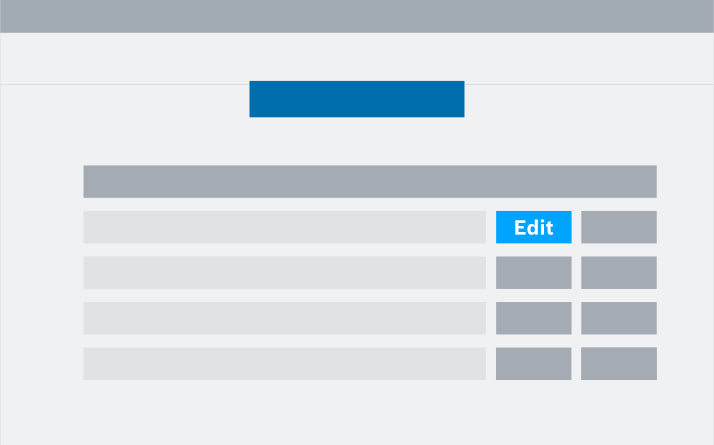
In order to connect the Measurement PC with the test vehicle you must synchronize the IP addresses. Press the "Edit" button and change the Measurement PC IP address to connect to the correct Measurement PC (use the IP address of the Measurement PC, it is possible to connect multiple PC's to your Connectivity Unit)
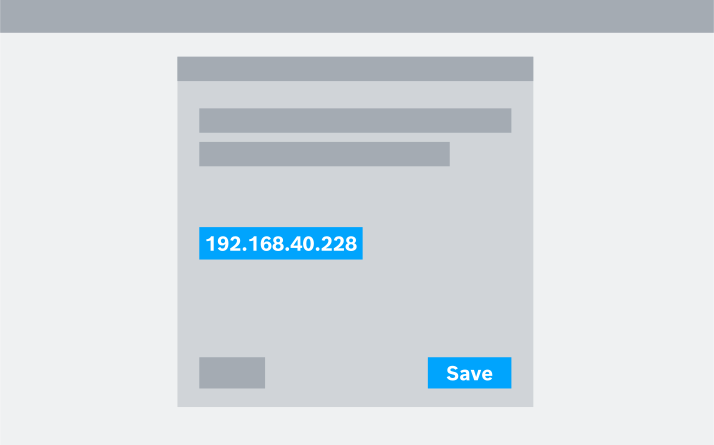
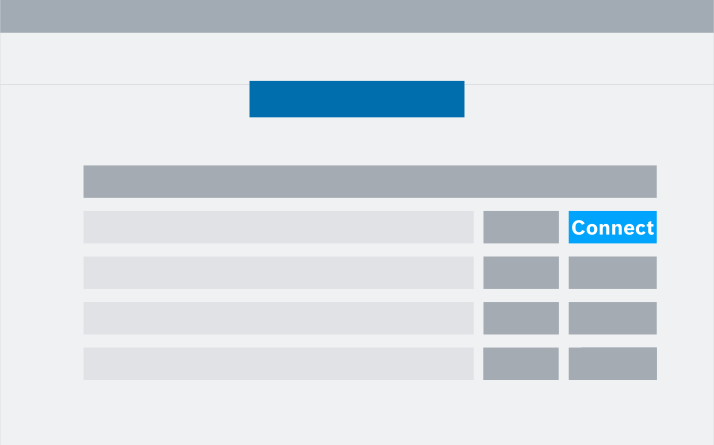
- If the IP address is configured, press the "Connect" Button to start the streaming. Follow the shown instructions.
Car driver has now to "Accept" at the pop-up Window from UltraVNC Server on the Measurement PC to start the Remote Desktop session. Once this is done, the stream starts.
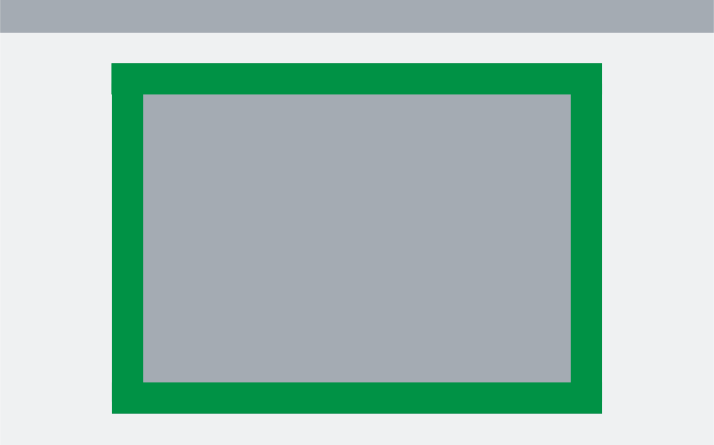
The stream connection will be disconnected if you are inactive for 5 minutes. The Timeout timer starts to count down if following situations occur:
- Cursor inside window and not moving inside
- Cursor outside the window
- No keyboard input while cursor inside window
Whenever your mouse is in the screen of your Measurement PC the border color changes from green to red. Default is green which means no commands will be send to your Measurement PC.
Continue with the File Sync - Remote Bridge