File Sync - Remote Bridge
-
File Sync - Remote Bridge is available inside the "Remote Bridge" application. You can request activation for "Remote Bridge" for your Project (Your request will be checked and after 1-3 days the apps can be started)
-
Once the app is activated, navigate to Connected Apps page at https://devices.fleetorganizer.beg-dev.io/#/apps. Start the "Remote Bridge" Application in your project, the app will be provisioned and available in a few minutes. Open the app once the option is enabled.
-
Click on the "Go to FileSync" button on the top right corner in the app page. You will be navigated to the FileSync page. You can switch back to the Remote Bridge page at any time
In order to use File Sync - Remote Bridge you need a Files Folder structure in your Fleet Organizer project.
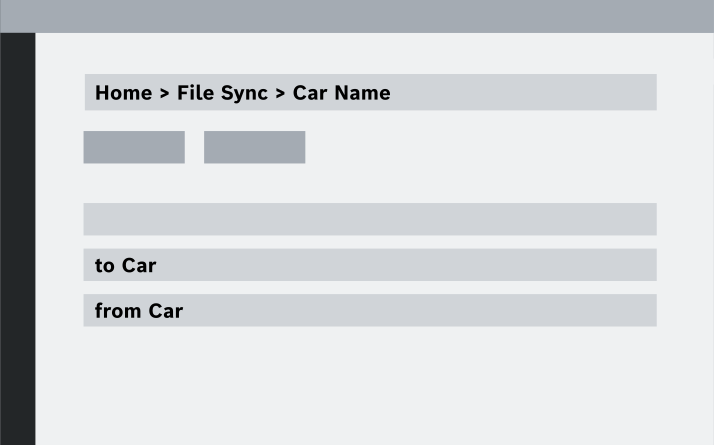
Go to Files at your Fleet Organizer project and create a new Folder. Name the Folder "File Sync" and add following underlying folder structure:
- <vehicle name>
- from Measurement-PC
- to Measurement-PC
- <vehicle name 2>
- i.from Measurement-PC
- ii.to Measurement-PC
-
Your Car needs to be configured in the File Sync - Remote Bridge Application. To do this go to the Filesync section in the Remote Bridge app running in your Fleet Organizer project.
-
If the configuration status of the vehicle is "not set", proceed by clicking the "Configure Paths" button. Inside the opened popup, select "Add Car PC" and input the IP Address of your Measurement PC, then use the dropdown menu to choose directories from the Fleet Organizer Folder Structure that you've created. Finally, save your configuration by clicking the "Save" button.
-
The Configuration Status of the Vehicle changes from "not set" to "pending". If the device is online and the box has successfully verified the configuration (10-30sec) the status changes to "set".
If you have a multi measurement PC setup you can simply add another configuration to your Car.
You can check the device status by clicking on the information bubble at the status indicator. Service specific information will be displayed, and you can Refresh the "last updated" information to get the latest
Upload File from Measurement-PC to Fleet Organizer
You can Copy & Paste or Drag & Drop files to Upload folder using the Upload Shortcut on your Desktop.
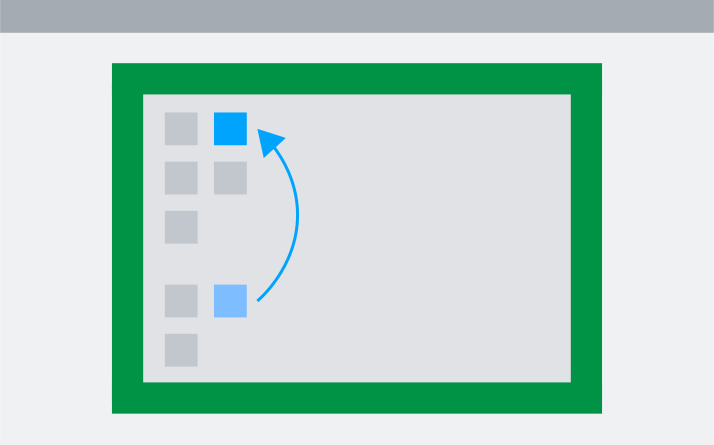
Once a file is copied successfully to the upload folder the file will be uploaded to Fleet Organizer automatically. As feedback, a popup notification will appear on Windows 10 PC's.
If the Upload is done you can find the Files in your "from" Folder in your PANTARIS Project
If the Upload to Fleet Organizer fails, the Connected Devices will try to Upload once again. The File will be renamed according the following example: NewFile.txt → NewFile_d-30-08-2023_15-30-45_123456.txt
If there is another issue present, and the upload fails again, the Connected Device does not try it again.
Download File to Measurement-PC from Fleet Organizer
-
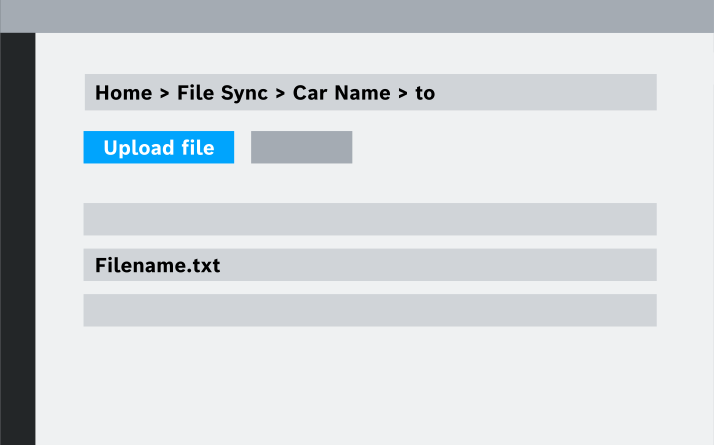
If you want to transfer a file from Fleet Organizer to your Measurement-PC you can go to your Fleet Organizer Files and choose in the File Sync directory the car and the “to” folder.
-
By pressing the “Upload file” Button you can Upload a specific file to the Fleet Organizer "to" directory. The file will be transferred to the local Measurement-PC and will appear in the download directory on Measurement-PC.
If download and transfer to Measurement-PC is done, the prefix "arrived" will be added to your filename on Fleet Organizer